Wednesday, June 17, 2009

Play live stream videos in flash video player for web page with RTMP Stream Plugin

Introduction:

RTMP(Real Time Messaging Protocol) is a TCP based propriety protocol developed by Adobe System for the purpose of streaming Audio/Video data between Flash Player and media server.

Advertisement by Leawo Free Video Accelerator - Watch and download online videos in high speed without buffering:

Watch Hot Hollywood movies for free

RTMP Stream Plugin makes the flash video player, which generated by Moyea Web Player (http://www.playerdiy.com/ ), supports the playback of live streaming videos, SMIL presentations, and streaming videos from RTMP servers: Wowza Media Server, Open Source Red5 server, FMS (Adobe's Flash Media Server) and other RTMP servers. And it makes the flash video player gets the following highlight features:
  • Playback of RTMPT streams
  • Random seeking to any positions of the video timeline
  • Starting playback from any position in the video timeline
  • Playback of live streams
  • Playback of SMIL presentations
  • Playback of streams from multiple RTMP servers
What is Moyea Web Player?

Moyea Web Player (it is free) is an easy-to-use graphical program for customizing skinning flash video player for website, with which, creating a flash video player only needs a few mouse-clicks. Here is its official website: http://www.playerdiy.com/

Where this plugin appears:

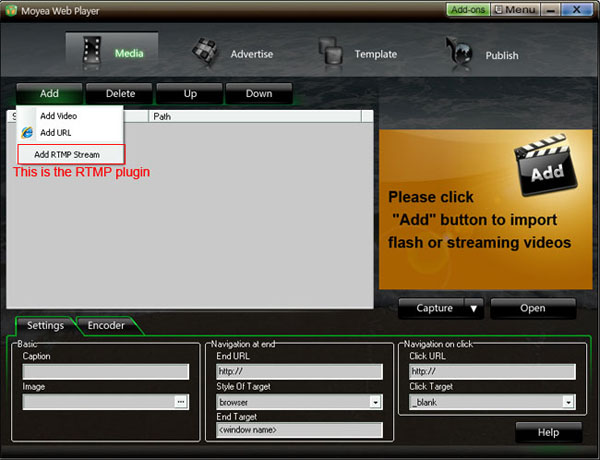
If you have installed Moyea Web Player V2.0 and up, this RTMP Stream Plugin will appear on the following interface of the software.
Example:

To play live stream videos in web flash video player, the step-by-step tutorial as below:

Step 1: Click “Add RTMP Stream” on the following interface, and then input streaming video URL (If the video extension is .flv, please don’t include .flv in the URL) into Moyea Web Player
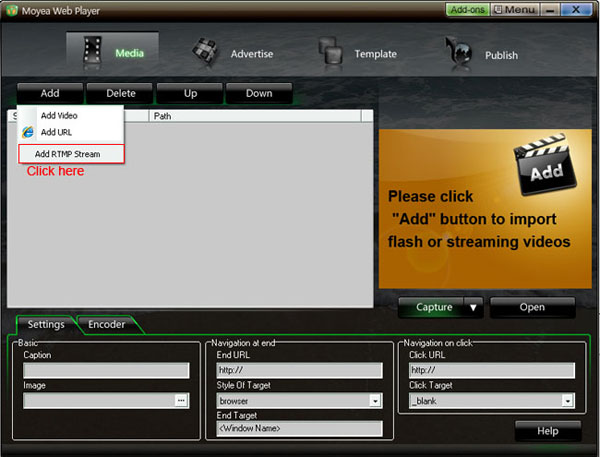
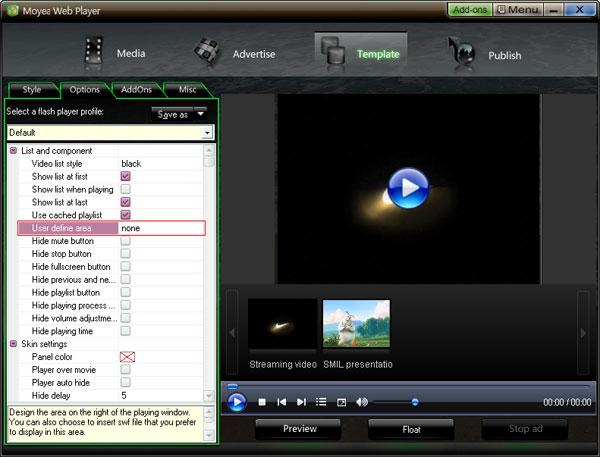
Step 2: Choose “none” to be the value of “User define area” to remove the “Embed & URL” area at the right of the player.


Step 3: Click “Publish” button, and then you could get the above demo.


Stream Videos from Multiple servers,Live Streaming videos and SMIL Presentations

This RTMP Stream Plugin enables the generated flash video player to support the playback of video streams from multiple RTMP servers, the playback of live streaming videos and SMIL presentations. To stream these streaming videos, the procedure is the same as the above example.

Term interpretation:

SMIL (pronounced "smile") stands for Synchronized Multimedia Integration Language, is a W3C recommended XML markup language for describing multimedia presentations. It defines markup for timing, layout, animations, visual transitions, and media embedding, among other things. SMIL allows the presentation of media items such as text, images, video, and audio, as well as links to other SMIL presentations, and files from multiple web servers. SMIL markup is written in XML, and has similarities to HTML.

--Excerpt from Wikipedia

Article Source: playediy.com

Related Tutorial:
How to make a web flash video player that can play live streaming video with Adobe Flash CS4


Stumble Upon Toolbar

Tuesday, June 9, 2009

Link to a specific video for playing in a web flash video player

You might have found that many video sharing sites like YouTube have the capability of making visitors playing a specific video into a new page, and this capability makes the large number of videos in better order. And if you want to build a video sharing site like YouTube, you have to achieve this functionality on it.

Below is the detailed tutorial to introduce how to make the flash video player generated by Moyea Web Player (it is free) gets the capability of playing a video in a new page on your video sharing site. This tutorial assumes you are building your site with PHP programming language, and it will cover two ways to achieve, one implements with a playlist file, and other one implements without playlist file.

>>>More information about the freeware Moyea Web Player

1. Implement with a playlist file (it is an .xml file generated by Moyea Web Player):

Embed Code (generated by Moyea web player after publish):

<script type="text/javascript" src="swfobject.js"></script>
<div id="flashcontent">Player will show here</div>
<script type="text/javascript">
var so = new SWFObject('mwplayer.swf','player','450','300','9');
so.addParam('wmode','opaque');
so.addParam('quality','high');
so.addParam('allowfullscreen','true');
so.addParam('allowscriptaccess','always');
so.addParam('flashvars','playerOpts=playItem*0*i||pauseAtFirstFrame*false*b');
so.write("flashcontent");
</script>

Add JavaScript in blogger (blogspot) post

The red words “playItem*0*I” is the actual video file. When “playerOpts=playItem*0*I”, it means the player is playing the first video in playlist. By analogy, when “playerOpts=playItem*1*I”, it means the player is playing the second video.

2. Implement with no playlsit file:

Embed Code:

<script type="text/javascript" src="swfobject.js"></script>
<div id="flashcontent">Player will show here</div>
<script type="text/javascript">
var so = new SWFObject('mwplayer.swf','player','450','300','9');
so.addParam('wmode','opaque');
so.addParam('quality','high');
so.addParam('allowfullscreen','true');
so.addParam('allowscriptaccess','always');
so.addParam('flashvars','playerOpts=playListPath*^^../../videos/Web Player.flv^../../videos/

Web Player.jpg*s||pauseAtFirstFrame*false*b||noWatchBtn*true*b||noPlayListBtn*true*b');
so.write("flashcontent");
</script>

The red words “^../../videos/Web Player.flv^../../videos/Web Player.jpg*s” means the player is playing the video named “Web Player.flv” and its thumbnail is “Web Player.jpg” and, the video and its thumbnail reside in a folder named “videos”.

You could click here to download the original PHP and HTML codes about the above examples for studying.

Source: playerdiy.com

Stumble Upon Toolbar

Tuesday, May 26, 2009

How to make a video not auto play on web page

Many people feel confused on how to make a video not auto play on a web page when the page starts to load. For sometimes the <param name="play" value="false"> has obviously been set in the HTML object tag, and have turned off the auto play parameter in Adobe Flash CS3, but the video still auto play. Sometimes even you have done a lot of settings, but still with no luck. And several hours has passed.
Now I know there is an easy solution to this problem, and this is the ultimate solution. Just a few clicks and you can easily make a video not auto play on a web page. Moreover, with this solution, you can also make your own flash video player for your website, and add advertisements and watermark to your videos, it really kills two birds with one stone.

Advertisement by Leawo Free Video Accelerator - Watch and download online videos in high speed without buffering:

Watch Hot Hollywood movies for free

1. Download Moyea web player, launch it in your PC. Moyea web player pro is a quick and easy solution for making a flash video player for your website, and it is free.

2. Input flash videos into Moyea Web Player. If your video is not FLV, you can use the four converters that recommended in Encoder tab to convert the video file to FLV or MP4, MOV, 3GP, 3G2 with H.264 codec that can be supported by Adobe Flash Player.

3. Go to “Template” menu>>Options>>Playback settings>>here check “Pause at first frame”, and this can make your flash video not auto play on your web page.


4. Customize the skin of the flash video player (optional).

5. Click "Publish" button to generate a web FLV player and other related files (Note: if you want to get a separate playlist file, please check "Out File")

6. Upload all the published files except the index.html file, to the same folder of your web server.

7. Embed the generated player in your webpage with the embed code below(Add JavaScript in blogger (blogspot) post):
<script type="text/javascript" src="swfobject.js"></script>
<div id="flashcontent">Player will show here</div>
<script type="text/javascript">
var so = new SWFObject('mwplayer.swf','player','500','450','9');
so.addParam('wmode','opaque');
so.addParam('quality','high');
so.addParam('allowfullscreen','true');
so.addParam('allowscriptaccess','always');
so.write("flashcontent");
</script>


Note: 1. mwplayer.swf is the actual flash video player. If it resides in another directory, then point to it with a relative path (e.g. video/mwplayer.swf) or an absolute path (e.g. http://www.yourdomain.com/video/mwplayer.swf ).

8. The FLV player will appear on your website and the FLV will not auto play when the page starts to load.

Stumble Upon Toolbar

Wednesday, May 13, 2009

Make Youtube video auto play (auto start) on your MySpace profile

In a previous article I talk about how to add a YouTube video to your MySpace profile. I have also noticed that lots of people ask for solution to make Youtube video auto play on MySpace.

Autostarting YouTube videos on MySpace is definitely possible. In essence it's very easy. All you need to do is to tweak your Youtube code a bit. The following procedure I put together will help you to auto play YouTube videos on MySpace.

Advertisement by Leawo Free Video Accelerator - Watch and download online videos in high speed without buffering:

Watch Hot Hollywood movies for free

This tutorial includes two parts:
Part 1: How to do this with YouTube code
Part 2: How to do this without YouTube code

Part 1: How to do this with YouTube code

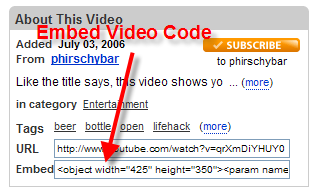
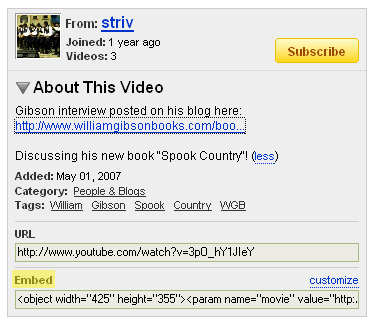
Step 1. Go to Youtube and find the EMBED code for the video.
This embed code is in the “About This Video” section of the video and will be automatically be selected in the “Embed” textbox.

Step 2. Copy the embed code of the video on Youtube to NotePad
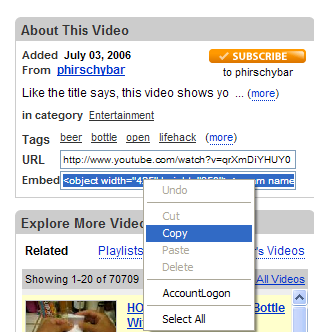
You can either use Ctrl+C on the keyboard or right click this box and select Copy to copy the code. Delete everything before <embed and everything after </embed>

Step 3. Add the &autoplay=1 suffix to the video URL as specified in the object and embed tags in the NotePad

<embed src="http://www.youtube.com/v/qrXmDiYHUY0&autoplay=1" type="application/x-shockwave-flash"
wmode="transparent" width="425" height="350">
</embed>

Step 4. Paste the code you just copied from Youtube in NotePad to your MySpace profile relative section


Step 5. Click Preview Profile and check how your profile looks.

Step 6. Click Save button to save the change.


Part 2: How to do this without YouTube code

Step 1. Download the Youtube video (tool needed: Leawo YouTube Download, it is free)
Download the Youtube video you want to add to your MySpace profile from the Internet to your PC with Leawo YouTube Download.

Step 2. Make the Youtube video auto play (tool needed: Moyea Web Player, it is free)
Launch Moyea Web Player in your PC, add the FLV file you have just downloaded on your computer to the program. Moyea Web Player Pro is a flash video player maker which is a quick solution to generate a custom flash video player for website and add videos to web page.

Find "Template" menu>>Options>>Playback settings, uncheck the "Pause at first frame" option, and this will make your Youtube video auto playe on web page. See the screenshot of this feature below:

Step 3. Moyea web player publishes some files like a swf file named mwplayer.swf and a html file named index.html

Step 4. Upload all the published files to the same folder of a host server, e.g.: http://www.free-webhosts.com/foldername/

Step 5. Embed the generated player onto your webpage with the code below, (you can get it on the generated index.html file): <<<Add JavaScript in blogger (blogspot) post
<script type="text/javascript" src="swfobject.js"></script>
<div id="flashcontent">Player will show here</div>
<script type="text/javascript">
var so = new SWFObject('mwplayer.swf','player','500','450','9');
so.addParam('wmode','opaque');
so.addParam('quality','high');
so.addParam('allowfullscreen','true');
so.addParam('allowscriptaccess','always');
so.write("flashcontent");
</script>

Note: 1. mwplayer.swf is the actual flash video player. If it resides in another directory, then point to it with a relative path (e.g. video/mwplayer.swf) or an absolute path (e.g. http://www.yourdomain.com/video/mwplayer.swf ).

Then the flash videos will appear on your website.

Good tool: Leawo Free YouTube Downloader - Download YouTube videos and other web videos with ease

Relative tutorial:
Add Youtube video to your MySpace profile
How to make video auto play on web page


Stumble Upon Toolbar

Add YouTube Video to your MySpace Profile

Last time I have written a tutorial about “How to add YouTube video to MySpace blog post”. However, I find that there are even more people asking How to add YouTube video to their MySpace profile page. These two questions are very similar and the steps of solution to them are very similar too. Now this step by step tutorial will show you how to do this.

Advertisement by Leawo Free Video Accelerator - Watch and download online videos in high speed without buffering:

Watch Hot Hollywood movies for free

Step 1. Go to YouTube and locate the video you want on your MySpace profile page.


Step 2. Get the embed code of the video
See the “About this Video” section? It will be on the right hand side of the video. (If you don’t see this, it means that whoever uploaded the video on YouTube opted to not allow folks to embed the video on other pages and you will have to find a different video)
The embed code in the “About This Video” section of the video will be automatically be selected in the “Embed” textbox. You can either use Ctrl+C on the keyboard or right click this box and select Copy to copy the code.


Step 3. Add the video to your MySpace profile page
Login into MySpace. Where you want the video to display on your MySpace profile depends on where you paste the code you copied from YouTube. Suppose that you want the video to display in the “About me” section. You can click “Edit Profile”, in the new page, you can paste the code you just copied from YouTube to the “About Me:” text area, and click “Save Changes” button at the bottom of the page to save the change. Go check out your MySpace profile. The video should be posted!


- Paste the code to MySpace


- Done!


Related tutorial
How to add flash video to blog How to add Youtube video to MySpace blog post

Stumble Upon Toolbar

Monday, May 11, 2009

How to add Youtube video to MySpace blog post

MySpace is an extreme popular social networking website with an interactive, user-submitted network of friends, personal profiles, blogs, groups, photos, music, and videos for teenagers and adults internationally.

In MySpace, We can write article about life or tech and add it to new blog post, we can also add videos to blog post. As we know, Youtube is the most popular video sharing video website on the Internet. So here comes the question: How can I add Youtube videos to my Myspace blog post?
And this question has been asked by many people all around the world every day. Now I give a step by step tutorial on this question, hope it can help you.

Step 1. Go to Youtube and find the EMBED code for the video.
This embed code is in the “About This Video” section of the video and will be automatically be selected in the “Embed” textbox.

Step 2. Copy the embed code of the video on Youtube.
You can either use Ctrl+C on the keyboard or right click this box and select Copy to copy the code.

Step 3. Add the Youtube video to MySpace Blog new post.
Login into MySpace>>”Manage Blog”>>”Post New Blog”>>in the new post page, click “HTML” button on the text editor bar, and paste the embed code you have just copied from Youtube to the new post>>click Preview & Post to make sure the video is there, then click the Post Blog Button.

Manage blog


Post new blog


Click HTML button on the editor bar


Preview Youtube video

Done!

Related tutorials:
How to add flash video to your blog
Add YouTube Video to your MySpace Profile

Stumble Upon Toolbar

Sunday, May 10, 2009

How to add flash videos to blog

On internet, there are always some people ask questions like "How can I add flash videos to my blog(blogger)?", "How can I add a flash video(FLV) to my blog?", "How can I embed flash videos into my myspace?" Here, I will give a step-by-step user guide to solve these problems.

Note: If the flash video is from Youtube, you might download it to your computer first.

Step-by-step User Guide:

Step 1. Download Moyea Web Player (it is free), install and launch it. Moyea web player is a flash video player maker offers quick and easy solution to make custom flash video player for website and add videos to web page.

Step 2. Add videos into Moyea Web Player (Moyea Web Player offers a free video converter to convert the unaccepted videos to flash video)

Step 3. Moyea web player publishes some files like a swf file named mwplayer.swf and a html file named index.html

Step 4. Upload all the published files to the same folder of a hosting, e.g.: http://www.free-webhosts.com/foldername/

Step 5. Embed the generated player onto your blog post with the embed code below (you can get it on the generated index.html file):<<<Add JavaScript in blogger (blogspot) post
<script type="text/javascript" src="swfobject.js"></script>
<div id="flashcontent">Player will show here</div>
<script type="text/javascript">
var so = new SWFObject('mwplayer.swf','player','500','450','9');
so.addParam('wmode','opaque');
so.addParam('quality','high');
so.addParam('allowfullscreen','true');
so.addParam('allowscriptaccess','always');
so.write("flashcontent");
</script>


Then the flash videos will appear on your blog.

Stumble Upon Toolbar