Saturday, February 28, 2009

Redirect to a URL when flash video (FLV) movie finishes playing - Solutions

Easy solution for this problem -
In just three steps

1. Download Moyea web player (it is free), which is a flash video player maker. It is a quick solution to make a flash video player for your website and publish videos to web pages. Lanuch the program in your PC.

Advertisement by Leawo Free Video Accelerator - Watch and download online videos in high speed without buffering:

Watch Hot Hollywood movies for free

2. Import Flash videos to the programs.

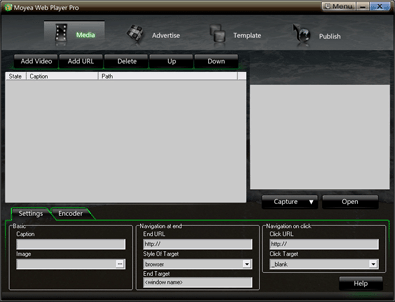
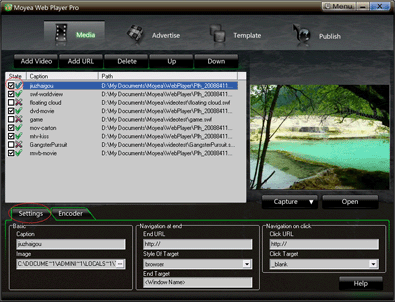
3. In the "Settings" tab, you'll find "Navigation at end" menu, here you enter the URL you want to direct to in the "End URL" text box, choose "browser" as "Style Of Target".


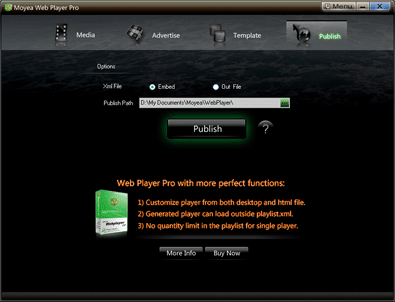
4. Click "Publish" to generate the resulting flash video player, videos and other related files.

5. Upload all the published files except the index.html file, to the same folder of your web server.

6. Embed the generated player in your webpage with the embed code below
:
>>>Add JavaScript in blogger (blogspot) post
<script type="text/javascript" src="swfobject.js"></script>
<div id="flashcontent">Player will show here</div>
<script type="text/javascript">
var so = new SWFObject('mwplayer.swf','player','500','450','9');
so.addParam('wmode','opaque');
so.addParam('quality','high');
so.addParam('allowfullscreen','true');
so.addParam('allowscriptaccess','always');
so.write("flashcontent");
</script>

Note: 1. mwplayer.swf is the actual flash video player. If it resides in another directory, then point to it with a relative path (e.g. video/mwplayer.swf) or an absolute path (e.g. http://www.yourdomain.com/video/mwplayer.swf ).

7. The
FLV player will appear on your website and redirect to the website you specified when it finishes playing.

Good tool: Leawo Free YouTube Downloader - Download YouTube videos and other web videos with ease


Stumble Upon Toolbar

Thursday, February 19, 2009

Softwares, programs that can play FLV (Flash video) on computer

On Windows if you double-click on a video file it will open in whatever video player you have installed. However, most common video players don't support Flash Video format (FLV's). So, double clicking on a Flash Video file generally does nothing.

So I have seen a lot of people on the Internet asking these questions - "How do I play FLV (Flash video) on my computer?" "Which program can play FLV file" "Which is the best flash video player?"

Advertisement by Leawo Free Video Accelerator - Watch and download online videos in high speed without buffering:

Watch Hot Hollywood movies for free

Wouldn't it be great if when you try to open a Flash Video it opens up in a Video Player so you can watch it?

Well, now you can.

Here I make a list of softwares that can play FLV on computer. Hopefully it can help you.

- VLC media player
This player can be used in most operating systems, and can play just almost all video formats, including FLV (Flash video). The latest version is 0.9.


More screenshots here.

- FLV Player by Martijn de Visser
FLV Player is a standalone application to play Flash .flv files with. It is totally free, mainly used on Windows machine. Just as the reviewer said "Does exactly what it says. Much better than another product I had previously. Haven't found anything wrong yet." The latest version is 2.0.25.


- Moyea web player, it is free
Moyea web player can also play FLV, it is a flash video player maker that provides quick and easy solution to add videos to web pages and produce the html page with the embedded skinnable flash video player to put on your website as well. In addition, it enables you to add as many advertisements (Ads) as you like into any video at any point-in-time, regardless of the number and kind of the Ads.


- The lastest version of Real player 11.0
As you have seen, the old version of RealPlayer cannot play FLV, so you must update it to version 11.0 or download a new one from its website.

- Media Player Classic
Maybe not many people Media Player Classic can play FLV, but it just can. I try it on my computer and it just play FLV well. In reality I use it on almost all my videos.

- MPW Player - Multimedia Web Player

This player is either a video and audio player, it supports media formats like MP3 and FLV, moreover, it is Open Source. The latest version in this year is 2.0.


- OS FLV - The Open Source, Embeddable FLV Player
The OS FLV Player is an Open Source, embedable player for Flash native video files. The player provides a large amount of options that can be changed in the embed code, a code generator written in javascript, a library of PHP functions, and, of course, fully open source code.


- flowplayer - video player for the web
Flowplayer is a GPL licensed video player for Web sites. Use it to embed video streams into your HTML pages.


- JW FLV Media Player
The JW FLV Player is the Internet’s most popular and flexible media player.


- And these players, it is said that they can also play FLV, but I'm not sure: mplayer, totem, xine, smplayer...

Moreover, you can use Moyea video4web Converter to convert all popular video formats to FLV, and .mov, mp4, 3gp, 3g2. It is totally free, no watermark, no limitation, no registration, all features are free.

Stumble Upon Toolbar

Friday, February 6, 2009

How to make a video sharing website like YouTube

YouTube is a magic thing to me. It only depends on the video sharing to create so terrific rank of 3 in all the websites in the world: what is it and how to design it. I have always doubted about this. In this article I will try to describe how to build a video sharing website in the following points. Further more, this article is only a guide in general. It is impossible to find everything of YouTube in this article. YouTube is a very complex system. You need to do a lot and a lot of things.
1. What is YouTube?
2. How to design YouTube?

Advertisement by Leawo Free Video Accelerator - Watch and download online videos in high speed without buffering:

Watch Hot Hollywood movies for free

Who will read this article: If you have interest on running your video hosting services, you wanna create your own video sharing site on Linux server with thousands upon thousands of visitors and video clips hosted just like YouTube, iFilm, Break or other famous video sharing sites do, this tutorial may tell you how to make the first step.

1. What is YouTube?---------------From Wikipedia, the free encyclopedia
YouTube is a video sharing website where users can upload, view and share video clips. YouTube was created in mid-February 2005 by three former PayPal employees. The San Bruno-based service uses Adobe Flash technology to display a wide variety of user-generated video content, including movie clips, TV clips and music videos, as well as amateur content such as video blogging and short original videos.

2. How to design YouTube Website?
As for you must have seen, you MUST buy your own domain (or create a new on) and rent your own server. Because free hosts will NOT allow you to upload several videos, nor will they give you the required database and server-side scripts.

To design a website like YouTube, there are 3 main tools that you have to use. They are Web design software like Dreamweaver or FrontPage and tools for active page development; sever-based video to flash video converter like Adobe® Flash® Media Interactive Server 3; flash video player maker like Moyea Web Player (it is free). Then I would like to show you how to design a YouTube website step-by-step.

Firstly, to design a website, we have to use some web design tools. Currently, Dreamweaver and FrontPage are commonly used by most web designers. You can streamline your development workflow by creating and editing images in Fireworks and flash works in Adobe Flash CS3 or CS4 Professional, and then import them directly into Dreamweaver. You have to develop customer interaction system, like login, logout and register system, upload system, database system to store the information of customers and videos uploaded by customers, which require active page technique, like ASP.NET, PHP, Java, etc. You can use PHP code to handle the active page, Linux Apache server as your server and MySQL Database as your database system. You have to install all these tools in the machine and set up the development environment correctly to make sure they work right together. Please note that, a video sharing site like YouTube will "cost" you several MONTHS of programming (and I mean SERIOUS CODING).

Secondly, after the web page completed, because it is sure that the videos uploaded by people would be much unorderly, then YouTube must contain a video to flash video (.flv) converter that can convert all kinds of video files which are uploaded by all customers to flash video (.flv) format file; YouTube needs software which can make these video files standardization including format standardization, size standardization, WxH standardization, etc. More important, this software must have the ability of contain any numbers of video files that are uploaded by the people all over the world to flash video (.flv) file. Meanwhile, this software must have the ability of crop and trim video files.

As far as I know, Adobe® Flash® Media Interactive Server 3 can complete these tasks. Adobe® Flash® Media Interactive Server 3 software has the unique combination of powerful streaming media capabilities and a flexible environment for creating and delivering interactive social media applications to the broadest possible audience. So Adobe® Flash® Media Interactive Server 3 is great if you can afford it. However I think there are plenty of other solutions to accomplish the same end goal.

Last but not the least, there must have a flash video (.flv) player that can play the videos uploaded by all people. Therefore, YouTube needs a flash video player maker to make a flash video player to play these flash video files. However, there are some basic requirements to the flash video player maker. The generated flash video player has to play any number of flash videos with a single flash video player, as it is impossible that one player plays only one flash video file. It has to be with scrollable thumbnail play list, and so on.

To this point, Moyea Web Player can do that, I also use it on my own website. It is a multifunctional flash video player maker and is free. With it, you can design your own player user interface and create a scrollable thumbnail play list, you can add advertisements to the flash videos. It is a pretty interesting program. The generated flash video player can add single or multiple videos in many formats to website. The flash video player supports playback of video formats that the Adobe Flash Player can handle, such as FLV, MOV, MP4, 3GP, 3G2 and H264.

However, it is very complicated to fully realize functions of YouTube. I am sorry for not being able to write all details on it. I hope this article can function as a general guide.

Stumble Upon Toolbar

Thursday, February 5, 2009

How to add flash video ( FLV ) to website?

On internet, there are more and more people ask questions like "How can I add flash videos to my website?", "How can I embed a flash video(FLV) into my web page?", "How to insert an abobe flash video into frontpage?" Here, I will give a step-by-step user guide to solve these problems.

Advertisement by Leawo Free Video Accelerator - Watch and download online videos in high speed without buffering:

Watch Hot Hollywood movies for free

Step-by-step User Guide: (Video tutorial of this topic on Youtube)

Step 1: Download Moyea Web Player from http://www.playerdiy.com/, install and launch it. Moyea web player (it is free) is a flash video player maker that provides quick and easy solution to add videos to web pages and embed a skinnable flash video player to website.


Step 2: Add videos into Moyea Web Player (Moyea Web Player offers a free video converter to convert the unaccepted videos to flash videos)

Step 3: moyea Web Player publishes some files like a swf file named mwplayer.swf and a html file named index.html

Step 4: Upload all the published files to the same folder of your website.

Step 5:
Embed the generated player onto your webpage with the embed code below (you can get it on the generated index.html file)<<<Add JavaScript in blogger (blogspot) post
<script type="text/javascript" src="swfobject.js"></script>
<div id="flashcontent">Player will show here</div>
<script type="text/javascript">
var so = new SWFObject('mwplayer.swf','player','500','450','9');
so.addParam('wmode','opaque');
so.addParam('quality','high');
so.addParam('allowfullscreen','true');
so.addParam('allowscriptaccess','always');
so.write("flashcontent");
</script>

Note: 1. mwplayer.swf is the actual flash video player. If it resides in another directory, then point to it with a relative path (e.g. video/mwplayer.swf) or an absolute path (e.g. http://www.yourdomain.com/video/mwplayer.swf ).

Then the flash videos will appear on your website.

Source: How to add flash videos to website?

Stumble Upon Toolbar

Wednesday, February 4, 2009

How to put DVD clips to website?

If you have a DVD movie and want to upload parts of it to your website, so how do you handle it?

As I know, you can use a converter that can rip DVD video file to FLV(Why FLV? Because FLV is your best bet) to your computer. To upload it to your website, you also need to make a Flash video player to control the playback of the Flash video files. You can do it in Adobe Flash CS3 with actionscript. Finally, upload all the web pages and Flash files to your hosting server.

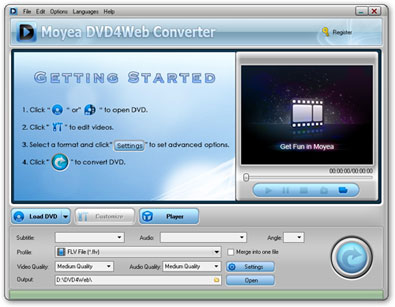
However, all these things seem to be a little complicated to a beginner on this subject. Though there are a lot of DVD to website solution products but I am talking about one for free. They are Moyea DVD4web Converter and Moyea web player (it is free). This guide include two parts:
Part 1: How to rip DVD to flash
Part 2: How to put the converted flash videos to website


Part 1: How to rip DVD to flash
1. Download Moyea DVD4Web converter from http://www.flash-video-mx.com/dvd4web-converter/ for free if it is for personal use. Launch it.


2. Import DVD file into the program
If there are DVD files in your computer, click the Load DVD button or Load IFO button, and a dialog box pops up for you to select the original DVD movies. Here, you have added the DVD movies to the product.

3. Set output file
After adding DVD movies to this DVD to Flash Converter, you can click drop-down button to open sub-directory: the titles and click drop-down button again: the chapters. Here, you can select the chapters you like to rip. Here you can set the output format as flv(flash video).

4. Customize the effect for output
Click “Customize” button on the main interface, you can start customizing effects for the output. Customize effect includes video effects, duration time trimming, and video cropping.

5. Complete conversion
You just need to click the start convert button to start conversion. After finishing ripping task, you can hit Open button to find the ripped files quickly and directly. Then it is ready for uploading to video share sites like YouTube, blog, any social websites for playback on them.

Part 2: How to put the converted flash videos to website
1. Download Moyea Web Player from http://www.playerdiy.com/, install and launch it. It is free.

2. Add the converted flash videos into Moyea Web Player (Moyea Web Player offers a free video converter to convert the unaccepted videos to flash videos)

3. Moyea Web Player publishes some files like a swf file named mwplayer.swf and a html file named index.html


4. Upload all the published files to the same folder of your website.

5: Embed the generated player onto your webpage with the code below, (you can get it on the generated index.html file):
<script type="text/javascript" src="swfobject.js"></script>
<div id="flashcontent">Player will show here</div>
<script type="text/javascript">
var so = new SWFObject('mwplayer.swf','player','500','450','9');
so.addParam('wmode','opaque');
so.addParam('quality','high');
so.addParam('allowfullscreen','true');
so.addParam('allowscriptaccess','always');
so.write("flashcontent");
</script>


>>>Add JavaScript in blogger (blogspot) post

Then the flash videos will appear on your website.

Stumble Upon Toolbar

Saturday, January 10, 2009

How to make a flash video player for your website to control the playback of FLV files

Flash Video (FLV) is viewable on most operating systems and web browsers via the widely available Adobe Flash Player and web browser plugin. Nowadays, most online videos are FLV.

A lot of people want to build their own style video sharing websites, maybe they have found web page templates for their website but do not have the code to make a flash video player on their websites, so they will be in a totally lost if they do not have knowledge and experience in Flash and actionscript.

Advertisement by Leawo Free Video Accelerator - Watch and download online videos in high speed without buffering:

Watch Hot Hollywood movies for free

I have found a tool, even if you don't know HTML or Flash, you can make a flash video player on your own. This tool is Moyea web player, it is free.

1. Launch the tool, here you can choose to select the videos you want to add to your website. Just click the "Add video" or "Add URL" button. Moreover, you can set the URL you want to visit after the video is finished displaying in the "Setting" tab, and use the four converters that recommended in the "Encoder" tab.

2. Next is the "Advertisement" menu, below this main menu, there are two sub-menus, they are "Advertise" and "Watermark", here you can add your advertisements and watermark to your videos, you must try these functions, becasue I think they are interesting.

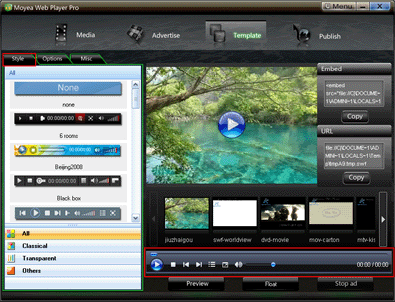
3. Click the "Template" main menu, here you can highly customize the skin of your flash video player. You can choose control bar style, you can set the background color of the player, you can choose which control button you want to display or hide, you can set the style of the big play button in the center of the video...You can do a lot of things in this section.


4. The last step is to publish the flash video player and the web page that have the player embedded. You can find all these files via the "publish path", upload them to your host web server, then the flash video player designed by your own will be viewable on your website.

That's all. Thank you!

Stumble Upon Toolbar

Wednesday, July 2, 2008

Adobe Advances Rich Media Search on the Web

Just find this press release on Adobe website,

For immediate release

Adobe Flash Technology Enhances Search Results for Dynamic Content and Rich Internet Applications
SAN JOSE, Calif. — July 1, 2008
— Adobe Systems Incorporated (Nasdaq:ADBE) today announced the company is teaming up with search industry leaders to dramatically improve search results of dynamic Web content and rich Internet applications (RIAs). Adobe is providing optimized Adobe® Flash® Player technology to Google and Yahoo! to enhance search engine indexing of the Flash file format (SWF) and uncover information that is currently undiscoverable by search engines. This will provide more relevant automatic search rankings of the millions of RIAs and other dynamic content that run in Adobe Flash Player. Moving forward, RIA developers and rich Web content producers won’t need to amend existing and future content to make it searchable — they can now be confident it can be found by users around the globe.

The openly published SWF specification describes the file format used to deliver rich applications and interactive content via Adobe Flash Player, which is installed on more than 98 percent of Internet-connected computers. Although search engines already index static text and links within SWF files, RIAs and dynamic Web content have been generally difficult to fully expose to search engines because of their changing states — a problem also inherent in other RIA technologies.

“Until now it has been extremely challenging to search the millions of RIAs and dynamic content on the Web, so we are leading the charge in improving search of content that runs in Adobe Flash Player,” said David Wadhwani, general manager and vice president of the Platform Business Unit at Adobe. “We are initially working with Google and Yahoo! to significantly improve search of this rich content on the Web, and we intend to broaden the availability of this capability to benefit all content publishers, developers and end users.”

Google has already begun to roll out Adobe Flash Player technology incorporated into its search engine. With Adobe’s help, Google can now better read the content on sites that use Adobe Flash technology, helping users find more relevant information when conducting searches. As a result, millions of pre-existing RIAs and dynamic Web experiences that utilize Adobe Flash technology, including content that loads at runtime, are immediately searchable without the need for companies and developers to alter them.

“Google has been working hard to improve how we can read and discover SWF files,” said Bill Coughran, senior vice president of engineering at Google. “Through our recent collaboration with Adobe, we now help Web site owners that choose to design sites with Adobe Flash software by indexing this content better. Improving how we crawl dynamic content will ultimately enhance the search experience for our users.”

Yahoo! also expects to deliver improved Web search capabilities for SWF applications in a future update to Yahoo! Search. “Yahoo! is committed to supporting webmaster needs with plans to support searchable SWF and is working with Adobe to determine the best possible implementation,” said Sean Suchter, vice president Yahoo! Search Technology Engineering.

“Designers and Web developers have long been frustrated that search engines couldn’t better access the information within their content created with Flash technology. It’s great to see Adobe and the search engines working directly together to improve the situation,” said Danny Sullivan, editor-in-chief, SearchEngineLand.com. “The changes should help unlock information that’s previously been ‘invisible’ and will likely result in a better experience for searchers.”

Adobe Flash Player is the world’s most pervasive client runtime that delivers unparalleled creative options, highly engaging user experiences, stunning audio/video playback, and nearly universal reach. To download and learn more about Adobe Flash Player, please visit www.adobe.com/products/flashplayer/ .

About Adobe Systems Incorporated
Adobe revolutionizes how the world engages with ideas and information - anytime, anywhere and through any medium. For more information, visit www.adobe.com .

###

© 2008 Adobe Systems Incorporated. All rights reserved. Adobe and Flash are either registered trademarks or trademarks of Adobe Systems Incorporated in the United States and/or other countries. All other trademarks are the property of their respective owners.

Stumble Upon Toolbar